New features
GitHub Copilot advanced support
Extend Verax Protect's security coverage across GitHub Copilot's web, desktop application, and CLI interfaces. Gain visibility into Copilot usage and apply security controls across supported interfaces to help prevent sensitive data exposure and unauthorized activity.
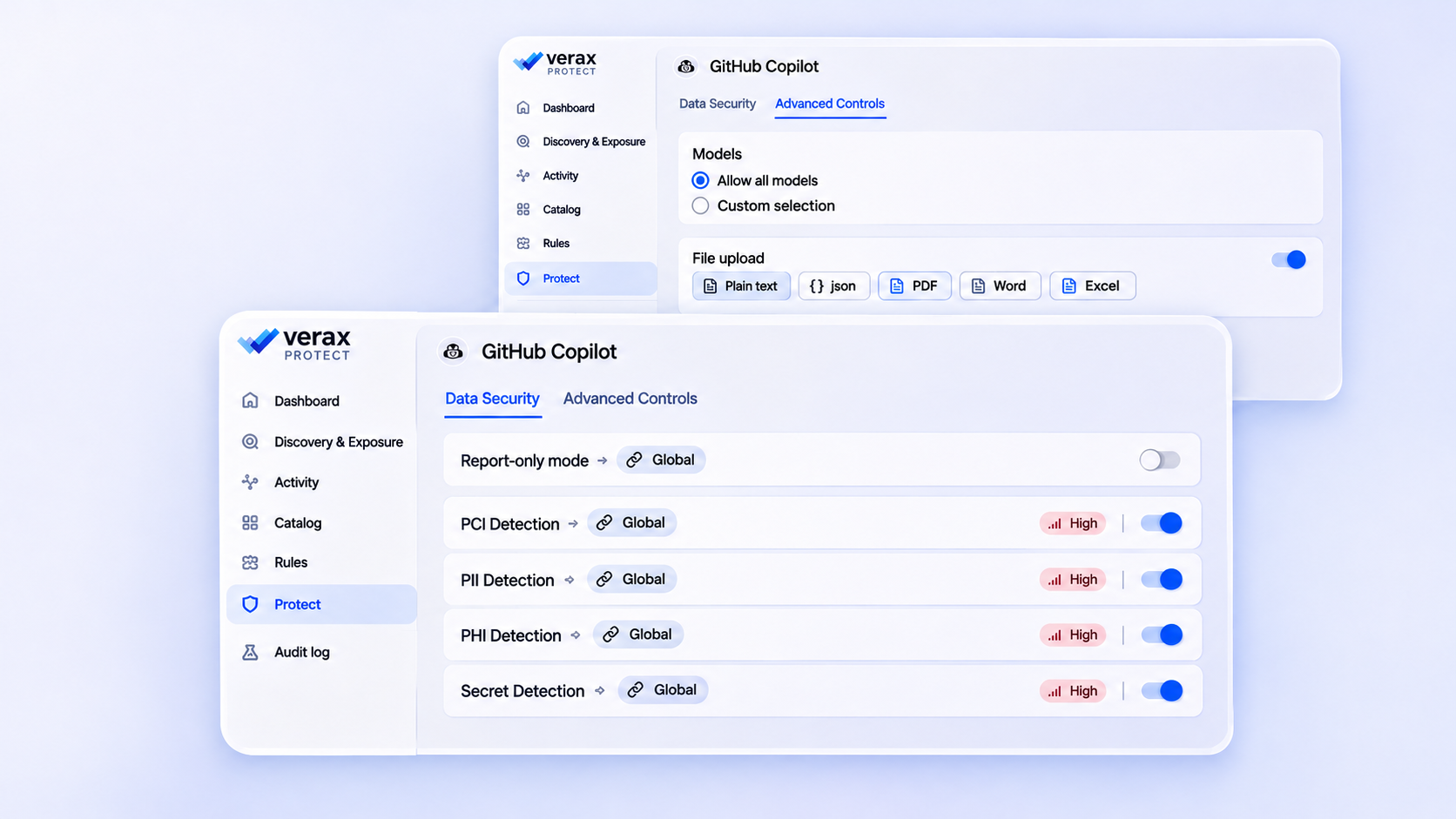
How to use
- Open Protect → Global to review the data security settings inherited by supported AI tools.
- Navigate to Protect → GitHub Copilot to configure Copilot-specific protection settings.
- Open Advanced Controls to configure additional capabilities and restrictions, where supported.
- Review Activity to investigate Copilot interactions, security findings, and enforcement decisions.
Personal and persistent AI agents
AI agents are evolving beyond individual conversations, operating continuously, maintaining context, and performing tasks on behalf of users. Verax Protect is expanding its coverage to this emerging category, starting with Grok Bot and laying the foundation for additional personal and persistent AI agents.

How to use
- Open Exposure Map to discover Grok Bot and explore its relationships with users and connected services.
- Investigate agent activity and associated security findings.
- Navigate to Activity to review captured interactions and events.
- Configure applicable security rules to control agent usage and restrict risky behavior.
Notifications and Slack integration
Stay on top of important AI security developments without constantly monitoring the Verax console. Receive notifications about newly discovered AI capabilities, agent operations, and important system updates, with optional delivery to your organization's Slack channel. Slack delivery requires connecting your Slack workspace and providing a webhook URL.

How to use
- Open Notifications to review discoveries, operations, and system updates.
- Navigate to Settings → Integrations → Notification channels to connect your Slack workspace and provide the webhook URL.
- Choose which notification categories to send to Slack and send a test notification to verify the integration.
Also in this release
- Improved navigation and user experience — A refreshed interface with a new top navigation bar, streamlined layouts, and easier access to key features across Verax Protect.
- Performance and scalability improvements — Under-the-hood enhancements to improve performance, reliability, and scalability as AI activity and agent adoption grow across the organization.